

01
Text to 3D
Choose your concept
Start with a description and choose the concept you want to turn into a model.
Turn words and images into 3D models. Personalize your designs, prepare print files, and get help when a print goes wrong. For functional parts, use CAID Studio to turn sketches and descriptions into dimensioned 3D models—all in your browser.
Start with an idea, a photo, or a model you already have. There’s a tool for your next step.
 AI Sketch & Text to CAID
Turn a sketch or a description into a dimensioned 3D part. Refine it with AI, review each step and export an STL.
 AI Text to 3D Models
Describe an object, generate two concept images, choose your favorite and turn it into a downloadable 3D model.
 AI Image to 3D Models
Upload one or more reference images and turn them directly into a 3D model or create refined concept images first.
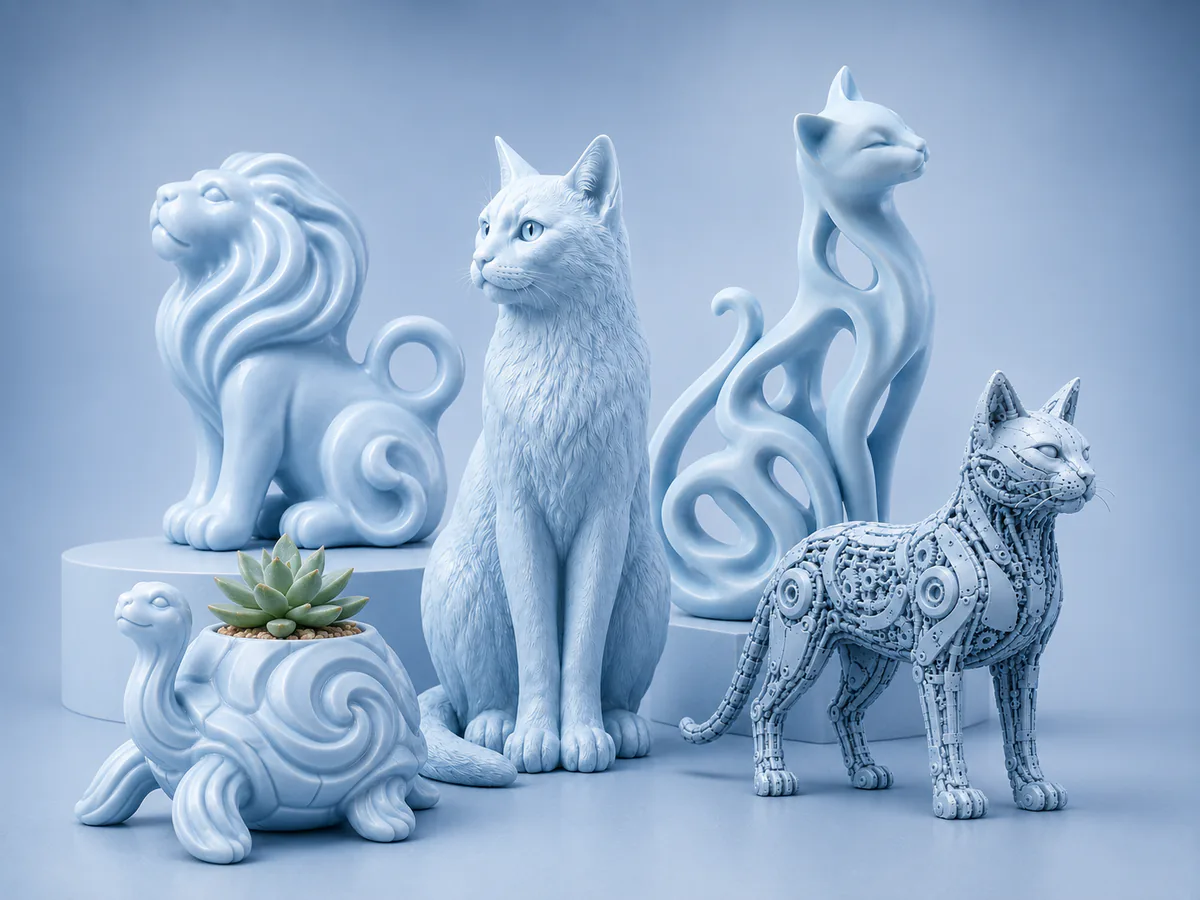 AI 3D Animal Models
Create custom animal models, decorations, keychains and printable collectibles with a guided AI workflow.
 AI 3D Pot Models
Create custom flower pots by choosing a pot shape, surface style, ratio and color style, then generate printable 3D planter models.
 AI 3D Vehicle Models
Create printable cars, motorcycles, aircraft, ships, submarines and other vehicle models with a guided AI workflow.
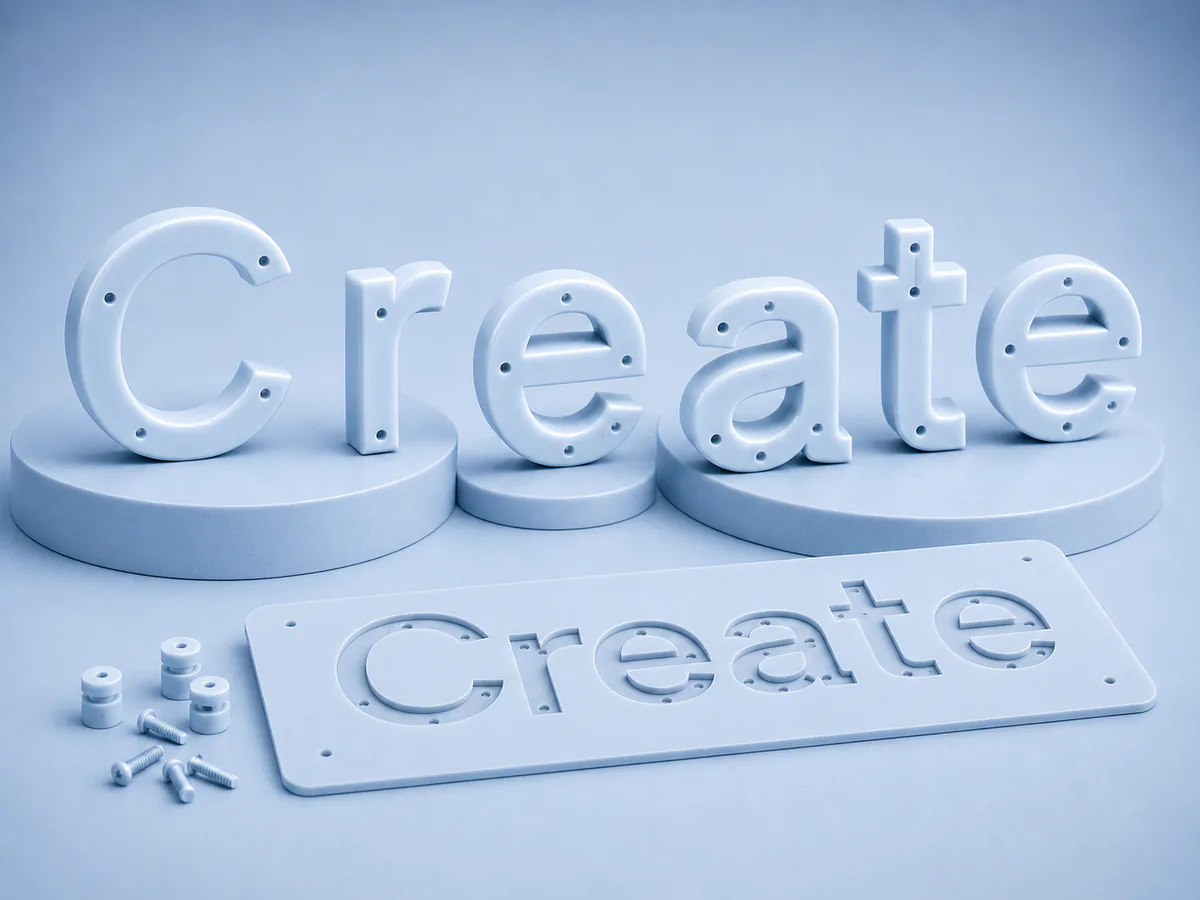 3D Models & Documents
Create 3D printable letters, wall signs, stencil templates and mounting-hole layouts directly in the browser.
 Cookie cutters & stamps
Turn text, decorated letters, images or SVG artwork into printable cookie cutters and stamps. Follow your design’s silhouette and preview the impression in dough before exporting your STL.
 SVG to 3D
Upload a filled SVG, set its dimensions and extrusion depth, preview it in 3D, then download STL, OBJ or GLB files directly in your browser.
 Photo to STL
Turn your photos into flat, curved or spherical lithophanes. Adjust the size, preview the lighting and download your STL for free.
 3D Dishes & Bowls
Design divided dishes with removable bowls, fitted trays and lids.
 AI Image to Icon
Upload an image or create one from text, choose the quality level and generate a clean single-color SVG with a matching PNG preview.
 3D Model to Keychain
Turn your 3D model into a keychain. Place the ring, customize its shape and colors, then download your model for free.
 Personalize 3D Models
Upload a 3D model, select a surface and add custom text or SVG artwork as raised or carved elements for personalized 3D printing.
 QR Code to 3D
Create custom QR codes and design your own 3D printable holders, with personalized layouts, colors and logos.
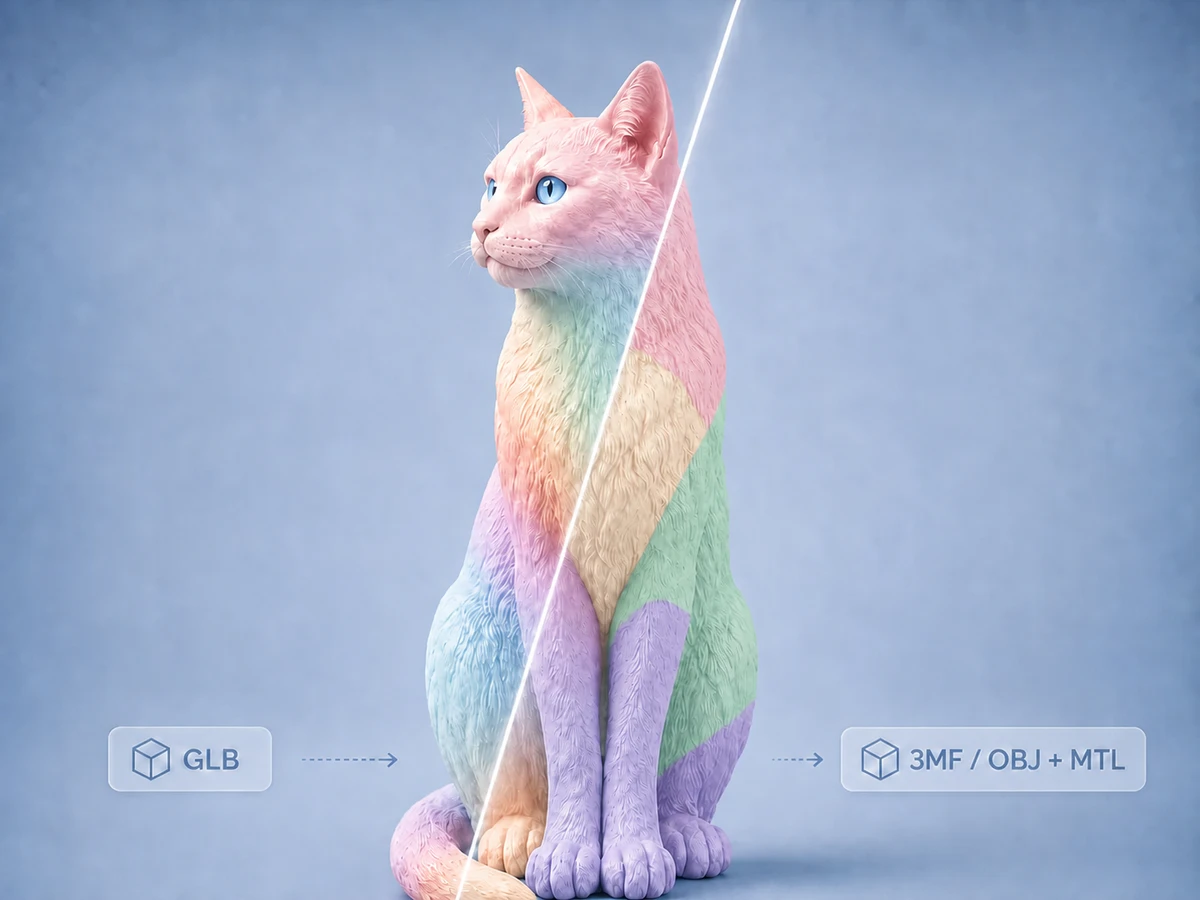 Multicolor Print Files
Upload a textured GLB model and convert it into a print-friendly 3MF file, an OBJ + MTL package, or both for multicolor 3D printing.
Free means no credits for the core tool. AI generation and some exports use credits; each tool shows the cost before a paid action.
Take a character from an AI concept to a custom keychain. These screenshots show the same dragon in Text to 3D and the Keychain Generator.
Start with a description and choose the concept you want to turn into a model.
Generate the model, rotate it, and inspect the shape before downloading.
Add a ring in the Keychain Generator and adjust its size and placement.
Actual tool screenshots and 3D previews. Before printing, check scale, thin details and supports in your slicer.
Give your model and its controls room to breathe. Start with a desktop or laptop and a maximized browser window.
A little setup. A clearer view.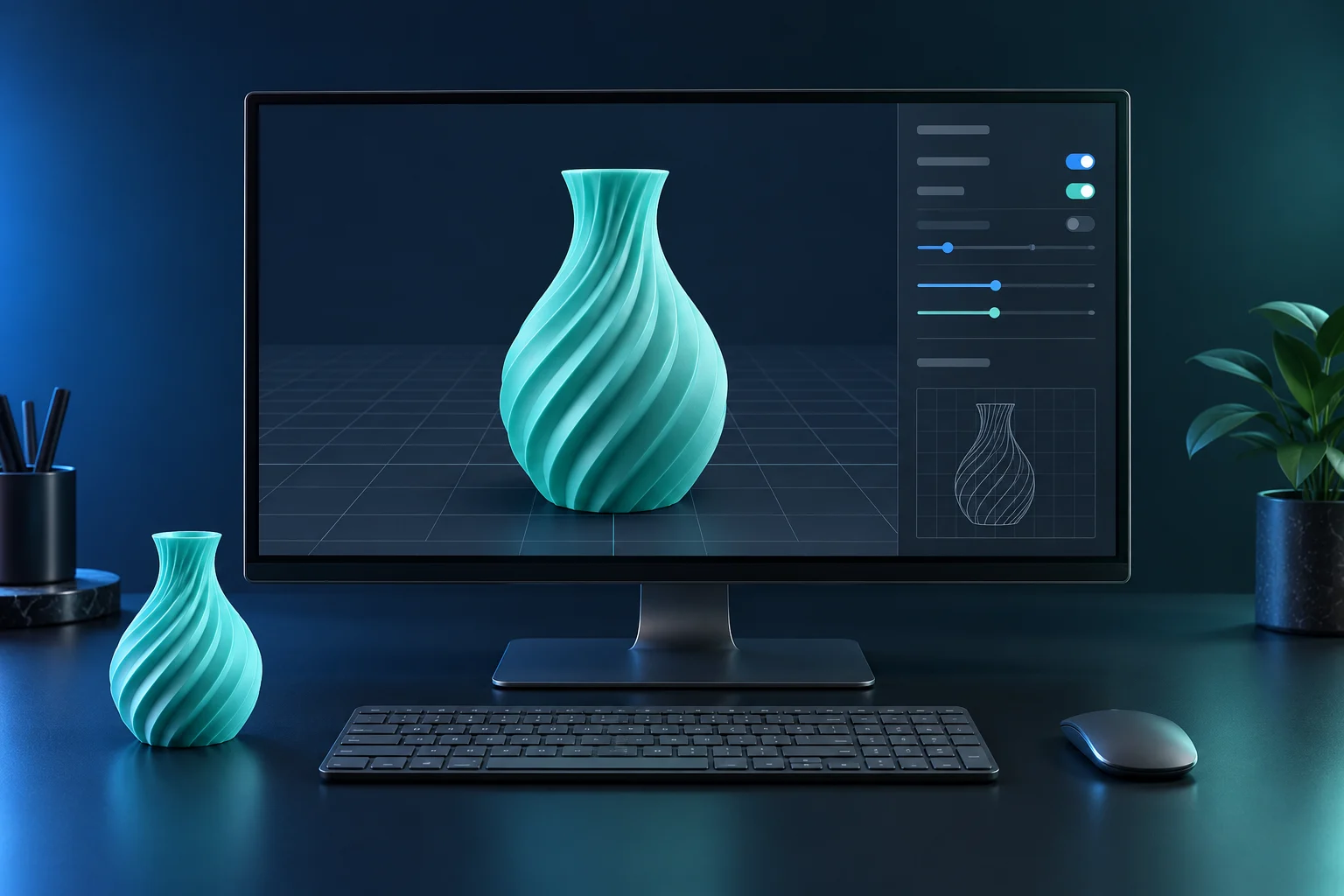
Suggested starting points · adjust for comfortable reading
Open Settings → System → Display. Under Display resolution, select the option marked Recommended.
In the same Display settings, find Scale. Use the suggestions above as a starting point; increase it if text feels too small.
Maximize your browser. Press Ctrl + 0 to reset zoom to 100%. You can increase zoom whenever you need larger text.
At 1920 × 1080, 125% scaling gives roughly 1536 × 864 of desktop space before browser bars. Larger controls leave less room for the model. Choose the balance that feels comfortable.
Microsoft display settings guideSee what we’ve been sharing in our latest video.
For every idea you try, print you share and bit of feedback you send: thank you. Your support helps Printooly grow.
Yes. Start with a photo of your own pet in the Animal Generator.
Use the animal-specific options to explore different looks. AI interprets the photo; hidden details and likeness can vary.
Yes. Use Image to 3D with a clear photo of yourself or someone you want to recreate.
This is an AI interpretation of the photo, not a precise body scan. Facial likeness and small details may need another attempt or editing.
Yes. Use the Flower Pot Generator to create your own design or start from a photo of a pot you like.
A reference photo guides the look; it does not guarantee an exact copy or matching measurements.
Yes. Image to 3D creates a model from reference images. If you want a backlit picture instead, choose the free Lithophane Generator.
Keychains, Personalizer, Mesh Reducer, the GLB converter, SVG to 3D, Lithophanes and PrintDoc have free core tools. QR plates are free; QR holders use credits.
Always inspect your model in a slicer. Check dimensions, mesh quality, thin details and supports. AI-generated models can need cleanup. STL files do not contain texture colors.
You can browse the tools and their guides on your phone. Use a desktop or laptop for uploading, editing, generating and exporting.